Whether you’re hosting a live webinar, an in-person meetup, or a virtual community hangout – event promotion as a creator can feel overwhelming. You juggle links, DMs, reminder emails, ticket pages… and that can turn messy, fast.
GetMy.Link gives you one smart link to share your event details, sign-ups, reminders, and calendar invites – all in one place. No juggling, no confusion.
In this guide, we’ll show you how to use GetMy.Link to promote your own events, from online workshops to local pop-ups. You’ll see how to create a clean, conversion-ready event link in minutes – with all the info your audience needs, and none of the chaos.
Why Event Links Matter (More Than You Think)
Imagine promoting a live webinar. You’ve got a Zoom link. A ticket form. An Instagram post. Maybe even a calendar invite. And your audience? They’re clicking through a maze just to figure out when and where to show up.
GetMy.Link cuts through that noise. You create a single event link – like getmy.link/gold-webinar – and use it everywhere: Instagram bio, email newsletter, stories, DMs, or even printed flyers.That one link becomes your event homepage:
- What the event is
- When it starts
- Where to join or attend
- How to get tickets or RSVP
- When reminders will go out
Instead of sending people in five directions, you just send them to one.
Tip: Event Links aren’t just for virtual events. Use them for in-person meetups, creator pop-ups, workshops, or product drops with a time and place.
How to Set Up an Event Link (in Under 3 Minutes)
Creating an event page with GetMy.Link is fast – no coding, no setup headaches. Just go to your dashboard and follow these steps:
- Click “+ Event Link” in the sidebar.
- Choose a short URL (like getmy.link/gold-webinar) – something memorable.
- Hit Create Event URL to launch the editor.
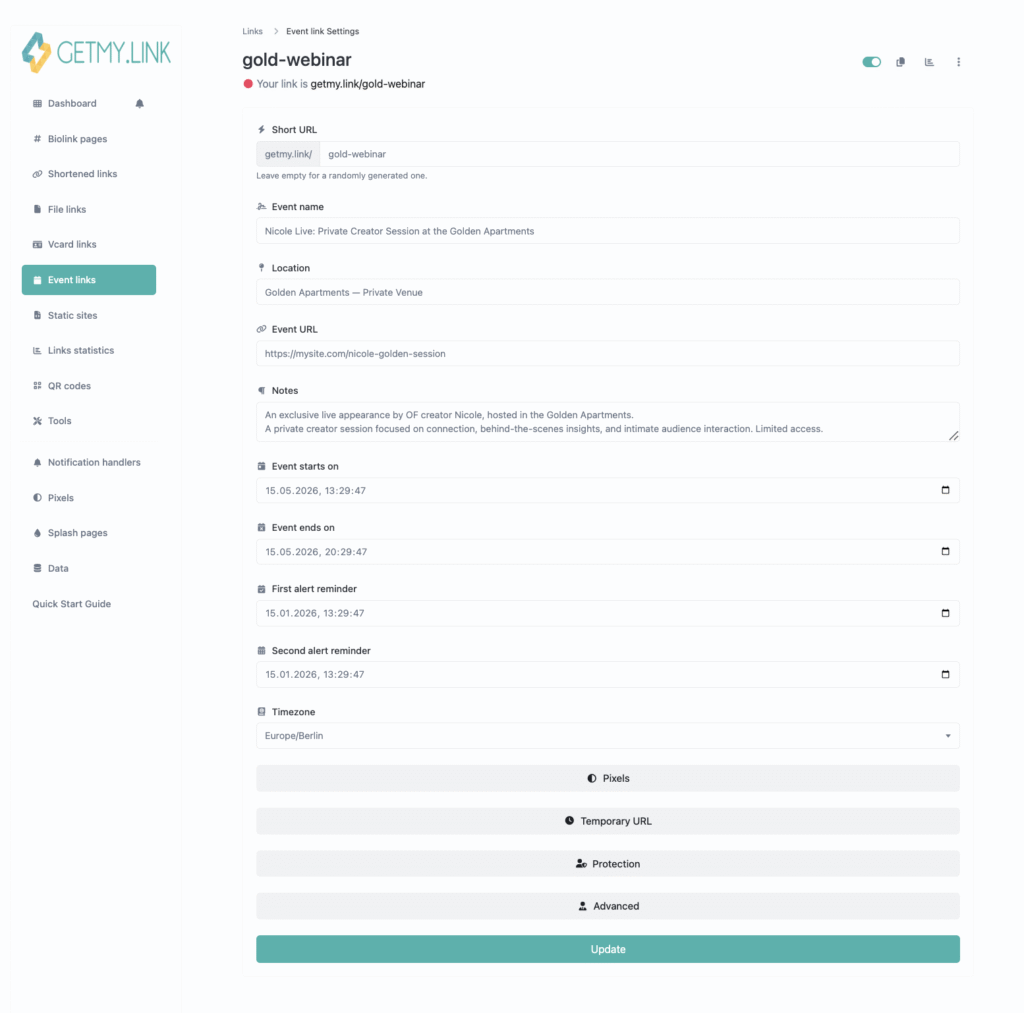
(GetMy.Link event link creation screen with a creator event fully set up.)
Now you’re in the event editor. Here’s what you can add:
- Event Name – This will appear at the top of the page and in previews.
- Location – A real-world address or “Zoom / YouTube Live” – whatever fits your event.
- Event URL – Paste in your ticket or registration link (if any).
- Start & End Time – Include time zone so no one’s confused.
- Reminder Alerts – Add up to 2 automatic reminders (e.g. “1 hour before” or “15 minutes before”).
- Notes – Add speaker info, agenda, FAQs, or joining instructions.
You can even protect your event with a password or set it to expire after it ends.
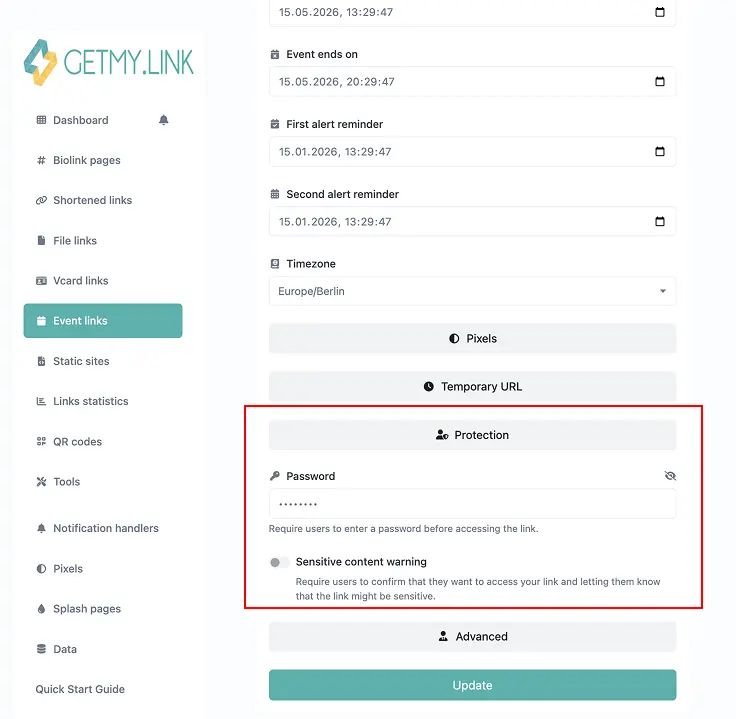
(GetMy.Link event link protection settings showing password access and sensitive content warning options.)
When you’re done, hit Update – and your event link is live.
Smart Features That Make Your Event Link Work Harder
Your event page isn’t just a static info block – it’s packed with smart tools to boost clicks, attendance, and follow-through. Here’s what you can use:
One Link, All the Details
The event link acts like a mini landing page. Title, date, time, place – plus a button to register or grab tickets. Everything your audience needs in one clean view.
Reminder Alerts
Let your audience opt into calendar reminders. You can set up to two alerts, like “24 hours before” and “15 minutes before”. No more forgotten events.
Location, Platform, or Both
Hosting a local meetup? Drop a street address. Doing a livestream? Just type “Instagram Live” or “Zoom” in the location field – it keeps things clear.
Registration or Ticket Links
Add a button that leads to your sign-up form or ticketing page. You can link to your site, a paid product, or even a free Google Form – your call.
Optional Protection
Want to keep it private? Add a password, or mark the event as 18+ with a content warning. Great for exclusives or paid sessions.
Auto-Expiring Pages
You can set your link to expire after the event ends. Or redirect it – for example, to a replay, thank-you page, your main profile, or a schedule of upcoming events. This way, latecomers still land somewhere useful – like your next big thing.
Where to Share Your Event Link (So People Actually Show Up)
Once your event link is live, don’t just post it once and hope for the best. To fill your virtual (or real) room, drop that link everywhere your audience already is.
Here’s how creators get the most traction:
Social Media Bios
Pin your event link in your Instagram, TikTok, or X/Twitter bio. If you already use a GetMy.Link biolink page, you can pin the event link to the top or create a big CTA block.
Tip: If you have multiple events, create a separate block for each one. It keeps things clean and clickable.
Posts, Stories & Reels
Announce the event in your posts and stories – but always include the event link. Use countdown stickers, teaser videos, or speaker clips to drive hype.
Email Newsletters
If you’ve got a list (even a small one), send your event link out early and follow up with reminders. Drop it into your email signature too – every click counts.
Your Website or Blog
Add the event link as a bold button – like “Join the Webinar” or “RSVP Now”. If you use a sidebar or banner, feature it prominently.
QR Codes for IRL
GetMy.Link includes a QR code generator. Create a branded QR that points straight to your event link. Great for flyers, stickers, slides at talks, or even merch.
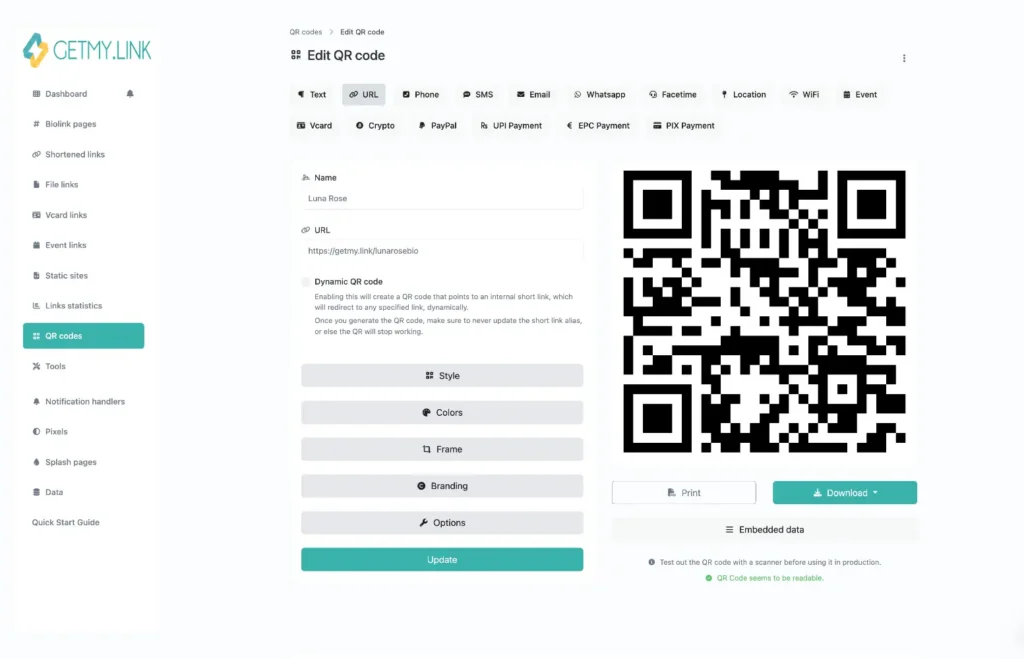
(Screenshot showing a QR code that links directly to an event page or any other link you attach to it.)
Promotion Tips to Maximize Attendance
A smart link is powerful – but how you talk about your event matters too. Here are tried-and-true ways creators boost turnout:
Start Early (and Build Momentum)
Start talking about your event 3-4 weeks out. Tease the topic, share behind-the-scenes prep, and drop the link casually before the “big push” starts. Momentum builds trust.
Creators who consistently get high turnout treat GetMy.Link events like full campaigns – teasing them early, building up with content, and finishing strong with countdowns and follow-ups.
Use Clear CTAs Everywhere
Every post should tell people exactly what to do:
“👉 Tap the link to RSVP”.
“🎟 Save your spot here”.
“📆 Add this to your calendar now”.
CTA rule: Put it at the top and bottom of your caption. People scroll fast.
Countdown + FOMO
As the event gets closer, post countdowns: “3 days left”, “Going live tomorrow”, “We’re starting in 1 hour!” Public posts create urgency – and if your event link includes an “Add to Calendar” option, that gives your audience an extra nudge to remember.
Give a Reason to Join
Don’t just say “I’m hosting a webinar” – say what they’ll get. A tip, a freebie, early access, a Q&A, a collab – something they can’t get elsewhere.
Reuse Your Best Stuff
Turn your event into content. Screenshots, speaker quotes, funny outtakes – all make great posts before the event and help push that link again. Engagement = visibility.
One Link. More People Show Up.
Promoting an event doesn’t have to feel like a juggling act. With GetMy.Link, you create one beautiful, flexible link that holds all your event details – from time and place to sign-up buttons and even calendar adds.
You can customize the look, set an expiration, redirect to replays, track clicks, and make your event link feel like a mini landing page – without designers or coders to build a website for it.
Whether it’s a meetup, product drop, or webinar promotion, GetMy.Link gives you a clean, centralized way to get people to show up.
Ready to try it out?
Set up your next event link and share it everywhere – social, email, or even as a QR. It only takes a minute, and it works like magic.
FAQs About Promoting Events with GetMy.Link
What is an Event Link in GetMy.Link?
An Event Link is a dedicated page that holds all your event info – date, time, location, and a call-to-action (like register or buy tickets) – in one shareable link.
How do I create an event link for my webinar?
Go to your GetMy.Link dashboard, click “+ Event Link”, choose a short URL, then enter your webinar title, time, location/platform, and registration URL. Hit save, and your link is ready.
Can I use GetMy.Link to promote in-person meetups?
Yes! Just enter the physical address in the “Location” field when setting up your event. You can also add notes like parking info or directions.
Can I add a countdown or timer to my event page?
While there’s no visual countdown widget, the event page shows the exact time and date. You can also use social media countdowns to complement it. Or manually update your event page text each day with lines like “3 days to go”, “2 days left”, or “Starting in less than 24 hours”.
How do I share my event link on Instagram?
Add it to your bio and use it in stories (with a link sticker). You can also mention it in captions or pin a post about the event to your profile.
Can I connect my Eventbrite or Zoom link to GetMy.Link?
Yes – paste your Eventbrite or Zoom registration/join link into the “Event URL” field so your visitors can click through from your event page.
How do I customize the design of my event page?
You can adjust colors, fonts, block styles, and more in your overall GetMy.Link biolink theme, which applies to event pages too.
Can I pin my event link to the top of my biolink?
Yes, use the “Pin” function to move your event block to the top of your main GetMy.Link page.
Does GetMy.Link support recurring events?
Not directly. For recurring events, you can either create multiple event links or keep one main link updated with the next date/time.
Can I redirect my event link after the event ends?
Yes – set a redirect destination (like a replay or thank-you page) using the “Temporary URL” feature.
Is it possible to track who clicked on my event link?
You can track the number of clicks, referral sources, and general analytics. However, it doesn’t show individual identities.
Can I use QR codes to promote my event offline?
Absolutely! GetMy.Link lets you generate branded QR codes that point to your event link – great for posters, flyers, or merchandise.
What happens when the event is over – does the link expire?
It doesn’t expire automatically, but you can set it to auto-expire or redirect after a set date/time.
Can I collect RSVPs directly through GetMy.Link?
Currently, GetMy.Link doesn’t include a built-in RSVP form. Instead, you can link to an external form (like Google Forms or Eventbrite).
Can I add my event to my audience’s calendars?
Yes – when users click your event link, they’ll see calendar buttons (like “Add to Google Calendar”) if you’ve set the correct time and date.
Is GetMy.Link free to use for event promotion?
Yes – the free plan fully covers everything you need to promote your events. Limits are generous, and for most creators, it’s more than enough to run webinars, meetups, and launches without upgrading.
How many events can I promote at once?
There’s no hard limit – you can create multiple Event Links and feature them individually or on one master biolink page.
Can I protect my event with a password?
Yes – you can set a password for your Event Link or add a content warning (like 18+) for sensitive or private events.
How do I use GetMy.Link to promote events via email?
Include your event link as a button or text link in your newsletter. It’s short, clean, and works well across all devices.
Can I schedule when the event link becomes active?
You can’t schedule a publish time, but you can hide the link until you’re ready or create it in advance and only share it later.
Does GetMy.Link work for private or invite-only events?
Yes – use the password protection or share the link only with a specific group. You stay in control over who can access it.
Can I reuse the same link for future events?
You can update the content of an Event Link, but it’s better to create a new one per event for clarity and tracking.
Leave a Reply