
Being an OnlyFans creator is more than just posting spicy content. You’re running a full-time business: planning shoots, editing clips, tracking what performs well, learning your audience, analyzing competitors, testing new content ideas – all while staying consistent and visible online.
That’s a lot of work. So when it’s finally time to share something special (like a private video, a limited-time drop, or a bonus gallery), you want to make sure it lands only in the hands of people who truly earned it.
That’s where password-protected links come in. With just one setting on GetMy.Link, you can control exactly who sees your exclusive content – even if the link gets shared around.
In this article, you’ll learn how to use this feature to your advantage – with real examples tailored to creators like you. You don’t need tech skills. Just a smart setup and a few best practices.
Let’s dive in!
What Are Password-Protected Links – and Why They Matter for Creators
A password-protected link is exactly what it sounds like: a page or file that’s locked until someone enters the correct password. Simple – but powerful.
On GetMy.Link, this means you can:
- Lock down any Biolink page, short link, file, or even a mini landing page.
- Decide who gets access (by sharing the password privately).
- Keep control, even if someone forwards the link itself – no password = no access.
For adult creators, this solves a very real problem: unauthorized sharing. Whether it’s a VIP drop leaking early, a special gallery ending up in the wrong hands, or someone reposting your paid content – password protection puts a wall between your content and the internet at large.
It’s not just about stopping theft. It’s also about:
- Creating a sense of exclusivity (which drives fan loyalty).
- Running private promos, early access drops, or surprise unlockables.
- Sharing “hidden” extras only with people you choose – not your whole audience.
Password protection on GetMy.Link is available on the free plan – no upgrade needed. Along with it, you get access to tons of powerful tools – all with very generous limits.
How to Add a Password to Any Link on GetMy.Link (Step-by-Step)
You don’t need to be tech-savvy to lock your content. On GetMy.Link, setting up a password takes less than a minute – and works for any type of link you create: a Biolink page, file drop, short link, or static landing.
Here’s how to do it:
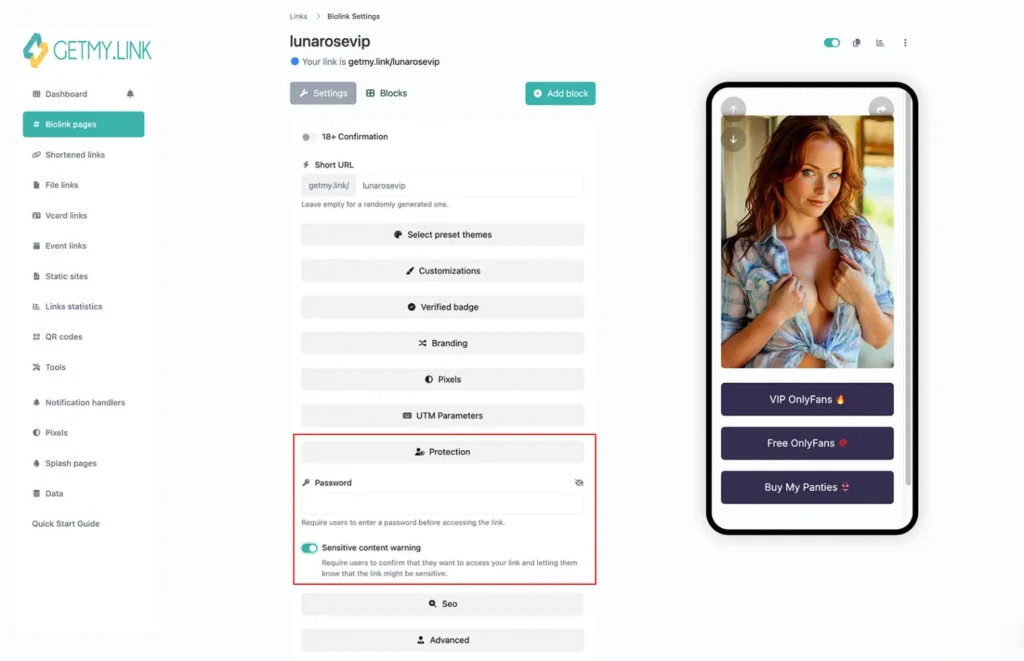
- Open your GetMy.Link dashboard.
Choose the link or page you want to protect (you can create a new one or edit an existing one). - Go to the “Protection” section.
In the editor sidebar, find the section labeled Protection or Privacy. This is where all the magic happens. - Toggle on “Password protection”.
Switch on the password option. You’ll see a field to enter your password – make it something your audience can remember, but others won’t easily guess. - (Optional) Add a content warning.
If it’s an NSFW link, turn on the “Sensitive content warning” to show a viewer discretion message before the password screen. - Click Save or Update.
That’s it! Your link is now locked. Anyone who visits it will need to enter the correct password to access what’s inside.
Smart Ways Creators Use Password-Protected Links (With Real Examples)
Password protection isn’t just about hiding stuff – it’s a tool for building hype, rewarding loyalty, and keeping control over your content. Here’s how real creators use it:
1. VIP Drops or Early Access
Give your most loyal fans a first look at new content.
Example: “My new video goes public tomorrow, but VIPs can watch it early with this link. Password: earlybird23”
It creates excitement and makes your top fans feel special.
2. Freebies That Still Feel Exclusive
Offer a free gallery or teaser – but only to the people who follow instructions or are part of your inner circle.
Example: “Use password secretfreebie to unlock a special bonus set this weekend”.
Pro tip: Combine this with download limits or link expiration for a true one-time-only feel.
3. Private Galleries or Zip Files
Using File Links on GetMy.Link, you can upload a whole gallery or a custom zip file – and then protect it with a password.
Only fans who receive the password get to download.
4. Hidden Sales & Discounts
Running a low-key promo for your top spenders? Lock a special page with discount codes, bundles, or surprise offers.
5. Testing New Content Privately
Want feedback on a video before releasing it publicly? Send the link and password to a few trusted fans or beta testers.
6. Splitting SFW vs. NSFW
Some creators keep a safe-for-work public page and a separate NSFW version that’s password-locked – great for keeping control while staying visible across platforms.
Each of these examples shows how passwords create boundaries – and that helps you build stronger trust with your audience. When fans feel like they’re “in on something”, they’re more likely to stay engaged (and subscribed).
Best Practices for Sharing Password-Protected Links Safely
A password can protect your content – but only if you share it the right way. Here’s how to keep your links safe and fan-friendly:
Use strong but simple passwords
Avoid using obvious stuff like 1234 or mypage. Instead, go with:
- Short phrases fans will remember (e.g., vipdrop2025)
- Or use GetMy.Link’s built-in Password Generator to create something stronger
Share passwords in private
Never post the password in a public caption or tweet. Instead:
- DM it directly to your subscribers
- Add it to a paid message
- Include it in your private newsletter or VIP group
Change passwords regularly
If you notice suspicious activity (like sudden spikes in views), update the password. It only takes a second.
Combine with scheduling or limits
GetMy.Link lets you set expiration dates, start/end times, or download limits. This adds extra protection in case someone leaks the password later.
Test before you send
Always open your link in incognito mode to make sure it’s truly locked. Try entering the wrong password to double-check the block.
Educate your fans
Some fans might not be used to password-protected content. Add a quick instruction like:
“Click the link, enter the password, and boom – you’re in.”
Clear steps = fewer DMs asking what to do.
Why Passwords Beat Other “Private Link” Methods
You might be thinking:
“Can’t I just send a regular link in DMs and call it private?”
Sure – but without a password, anyone with that link can open it. And let’s be honest: once a fan gets access, there’s always a risk they’ll forward it.
Here’s why password protection is a better solution:
❌ Regular links can be leaked
DMs, chats, even paid messages – all can be screenshotted or forwarded. If there’s no lock, anyone can click.
✅ Password = extra layer
Even if the link gets shared, it won’t work without the password. That small step keeps your content safer.
✅ You stay in control
You decide who gets the code – and you can change it anytime. It’s not tied to platform permissions or paywalls.
✅ Great for off-platform campaigns
Running a drop via email? Promoting on Telegram or Discord? Passwords give you privacy even outside subscription sites.
In short, it’s the simplest way to gate content – without relying on external paywalls, apps, or invite tools.
Ready to Lock Down Your VIP Content?
As an OnlyFans creator, you’re not just posting pics – you’re building a brand, protecting your work, and managing a loyal audience. With password-protected links from GetMy.Link, you can:
- Share private content securely
- Run exclusive drops or promos
- Build stronger trust with your top fans
- Stay in control – no matter where your link goes
You don’t need to upgrade or install anything. It’s already part of your GetMy.Link dashboard – waiting to be turned on.
So next time you launch something special, don’t just send a link. Lock it.
Your fans will feel closer. And your content will stay yours.
FAQ: Everything You Need to Know About Password-Protected Links
What is a password-protected link on GetMy.Link?
It’s a link that only opens after a viewer enters a correct password. It works for pages, files, short links, and even landing pages you create through the platform.
Is password protection available on the free plan?
Yes! This feature is included in the free plan, along with other powerful tools and generous limits.
Can I protect file downloads with a password?
Absolutely. Just upload your file via a File Link, and you can lock it with a password in the “Protection” section.
Can I use password protection on my main Biolink page?
Yes, you can lock your entire Biolink page or individual sections of it using the password protection toggle.
Where do I add a password inside the editor?
On the page where you’re editing a Biolink or similar item, open the dropdown menu labeled Protection. There you’ll see a field where you can set a password.
Can I change the password later?
Yes, you can edit the password at any time by opening the same Protection settings and replacing the old password.
Can I remove a password from a link after publishing it?
Yes, just go back into the Protection section and toggle off the password option. Save your changes, and the page will be public again.
Can I use emojis or symbols in passwords?
You can use basic symbols, but avoid special or rare characters that might not be supported across devices. Stick with numbers, letters, and common punctuation.
What happens if someone enters the wrong password?
They’ll see an error message and won’t be allowed to proceed. The page remains locked until the correct password is entered.
Can I combine password protection with an NSFW warning?
Yes. You can enable both a content warning and password lock for double protection – especially useful for adult or explicit content.
Can I schedule a password-protected link to go live later?
Yes. Use the built-in scheduler to set start/end times, even on locked links. It’s great for timed drops or temporary offers.
Can I add password protection to a QR code link?
Yes. Just create a short link, enable password protection, and then generate the QR code. Scanning the QR will still require a password.
What should I do if someone leaks the password?
Change it immediately in the editor. You can also expire or deactivate the link temporarily if needed.
Can I set different passwords for different audiences?
Not on a single link, but you can clone your page and set unique passwords per clone. Then share each version with the right audience.
Is there a way to see how many people accessed my protected page?
Yes, the analytics dashboard tracks views, even for locked pages. You won’t see who viewed it, but you can monitor traffic.
How do I share the password safely with fans?
Use private channels: DMs, paid messages, newsletters, or invite-only groups. Avoid posting passwords publicly.
Is it possible to expire the link after a certain number of clicks?
Yes. You can set a max click limit in the link’s settings. Once it’s reached, the link stops working.
Does password protection work for group chats or Telegram drops?
Yes. You can share the link and password in your chat group. Only those with the code can open it.
Do fans need to sign up or log in to view a protected page?
No login required. They just need the link and the correct password.
Will search engines index a password-protected link?
No. These pages are hidden from search engines, even before the password is entered.
Can I lock a whole Biolink profile, not just a single item?
Yes. In the main Biolink settings, enable password protection to cover the entire profile.
Do I get notified when someone enters the password and views the page?
Not directly, but you can track overall visits via your GetMy.Link analytics dashboard.
Leave a Reply