
As a creator, you’re not just making content – you’re producing, writing, promoting, chatting with fans, and managing 5+ platforms at once. It’s a full-time hustle. And on top of that, every platform only gives you space for one link in bio.
That means you need a single place that connects everything: your paid content, socials, promos, tip jars, and more. A page that’s fast, clean, and designed to get clicks.
GetMy.Link is not just another link tool, it gives you full control over how your page looks and feels. You don’t have to settle for a bland layout or someone else’s branding. You can make your page look like you – bold, fun, stylish, or soft – whatever fits your vibe.
In this article, we’ll walk you through how to customize your GetMy.Link bio page using themes, colors, and design tools – so that when fans land on it, they stay.
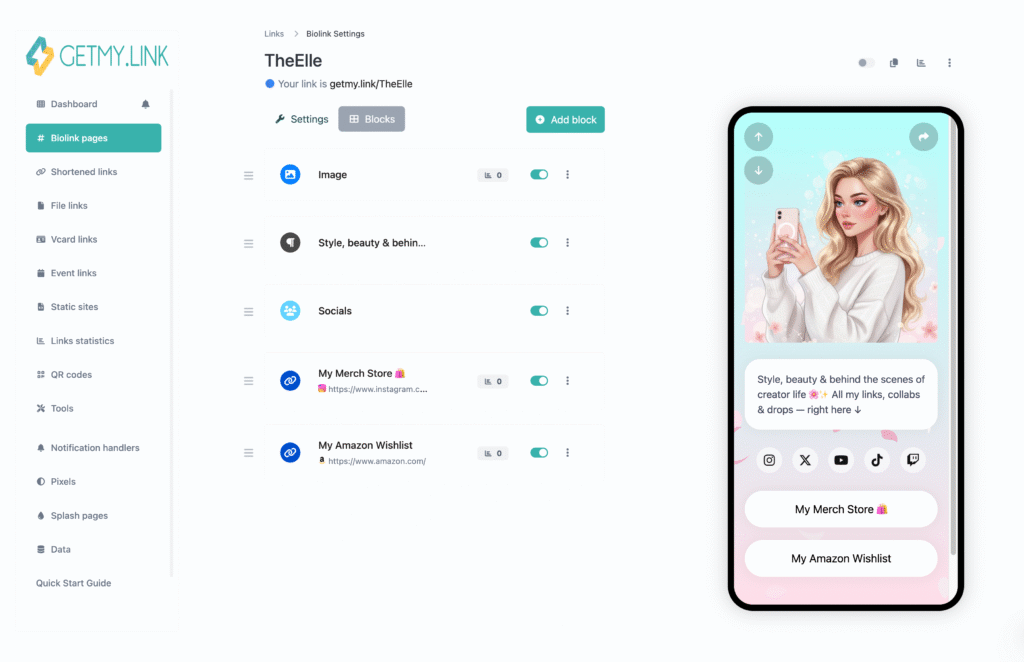
Start Fast with a Pre-Made Theme
Don’t want to mess with every color and corner manually? You don’t have to.
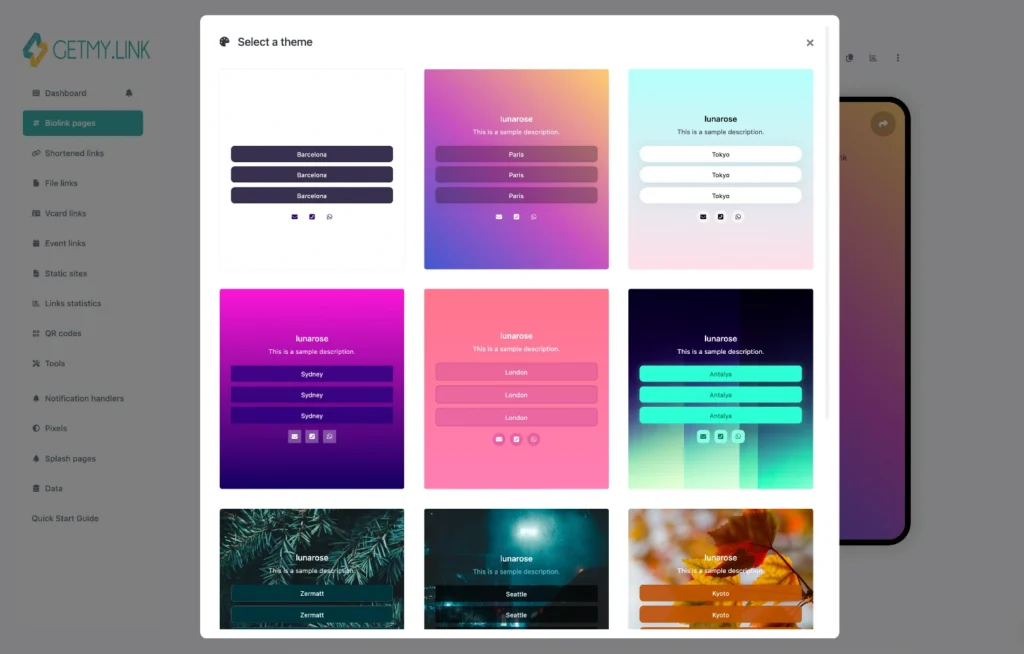
GetMy.Link has built-in theme presets – ready-made styles that instantly give your page a clean, pro look. One click, and boom: your page updates with matching buttons, fonts, and background accents.
Whether your vibe is neon bold, soft pastel, moody dark, or ultra-minimal – there’s something that fits.
These themes take care of:
- Button shape & color
- Background type (solid, gradient, image or video)
- Font style
- Overall layout vibe
This is just your starting point, and you can still tweak everything after.
Make It Yours: Colors, Backgrounds & Visual Vibe
Once you’ve picked a theme, it’s time to make it yours. The design tab lets you customize everything – from colors to backgrounds – so your page doesn’t just look good, it looks like you.
Here’s what you can adjust:
- Accent colors – Match your branding, mood, or just your favorite color.
- Background type – Choose between solid color, gradient, image – or even video.
- Background filters – Add blur, tweak brightness, or go moody with a darker overlay.
- Font styles – Adjust size, weight, and color so your text pops the way you want.
You can apply your custom brand palette, match the design to your latest content drop, or switch between soft and cozy vibes in the morning and dark, sexy tones at night – it’s all up to you.
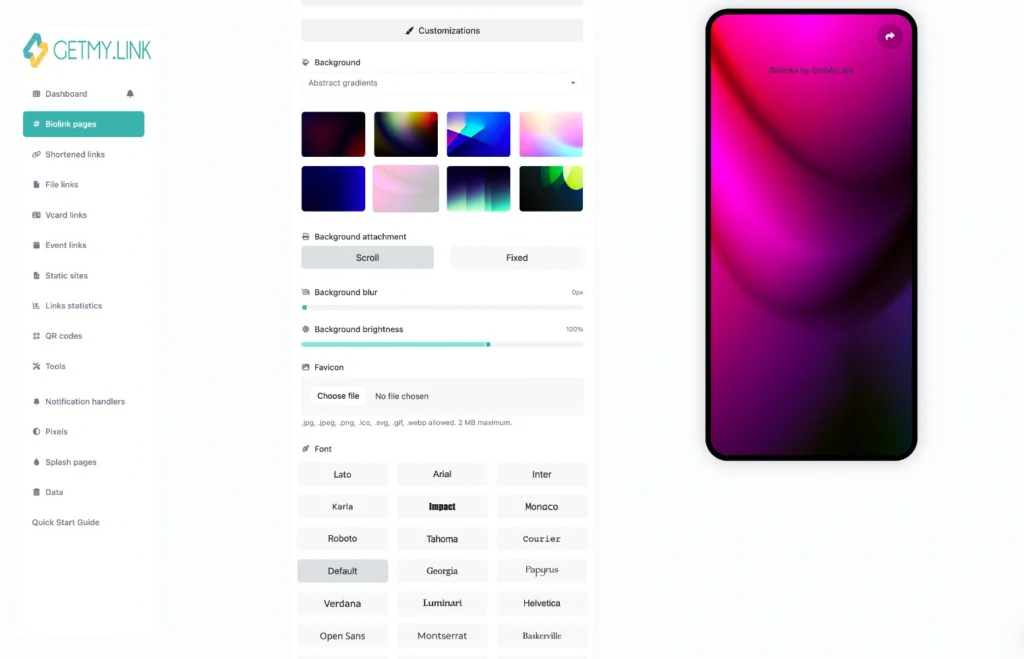
Tip: backgrounds with a soft blur behind bold buttons = 🔥.
Branding That Feels Like You
Your page shouldn’t feel like just another template – it should feel like yours. GetMy.Link gives you full control over branding elements so fans instantly recognize your look.
Here’s what you can personalize:
- Profile image or logo – Show your face, your logo, or both.
- Page name & footer label – Add your name, stage name, or brand text.
- Custom link in footer – Point it to your main site, wishlist, or premium hub.
- Favicon – It’s a little icon in browser tabs. And you can set your own.
You can even tweak the layout spacing and page width, so everything feels just right – not too tight, not too spaced out.
Build Your Page with Blocks That Convert
Now it’s time to actually build your bio page – using blocks. Think of them like content bricks: you mix and match what you need, in the order you want.
Here are some of the blocks you can use:
- Buttons – For your links: OnlyFans, socials, VIP chats, stores, tip jars.
- Headings – Break your page into sections (“My VIP Club”, “Free Previews”, etc).
- Media – Add a teaser video, promo banner, or image gallery.
- Text – Leave a welcome note, short bio, or updates.
- Email form – Collect leads, fan contacts, or promo opt-ins.
Keep it clean: don’t overload the page with 20 buttons and 6 sections. Focus on the 5-7 links that matter most.
Use spacing and headings to create visual flow. Think: scroll, stop, click.
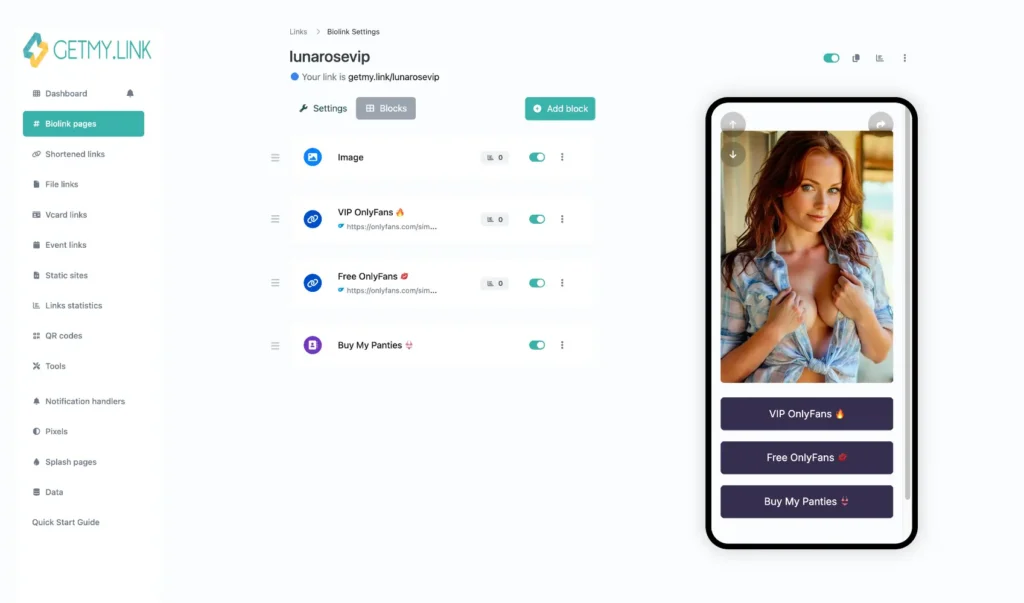
Pro tip: put your main CTA (like “Join My OnlyFans”) near the top – styled, centered, and easy to tap.
Fine-Tune and Preview Like a Pro
Once your blocks are in place and the vibe feels right – give everything a final polish.
Jump back into the Design or Branding tabs and tweak the small stuff:
- Change button corners (square vs. rounded)
- Adjust font weights and spacing
- Switch between light or dark text modes
- Refine background blur or brightness
- Reorder blocks for better flow
Your live mobile preview updates instantly, so you can see how the page looks on a phone – where most fans will view it. Test how it scrolls. Does the text pop? Do buttons feel tappable? Is your CTA visible without scrolling?
Everything is flexible – your brand, your layout, your aesthetic.
Want More Control? Go Advanced (Optional)
For most creators, the built-in tools are more than enough. But if you’re a bit techy – or work with someone who is – GetMy.Link gives you extra power.
Inside the Advanced settings, you can:
- Add custom CSS – for unique styles, animations, or font tweaks.
- Inject JavaScript – for custom scripts, timers, or visual effects.
- Connect tracking pixels – Facebook, Google, or promo campaigns.
- Add UTM tags – to see exactly where your traffic comes from.
This stuff isn’t required. But it’s there if you want to push beyond the standard look and turn your page into a mini marketing hub.
For creators running promos, paid ads, or collabs – those extra tools help track what’s working (and what’s not) without messing up your design.
Test, Preview, Publish – Done
Almost there. Before you hit “Publish”, give your page one last walkthrough – like you’re a fan seeing it for the first time.
Here’s your checklist:
- All buttons work and open the right links
- Your main CTA is visible right away
- Text is readable (no weird contrast or font issues)
- Layout scrolls smoothly on mobile
- Media (if added) loads correctly
- Branding looks clean and intentional
And if your content is spicy or age-restricted?
GetMy.Link lets you turn on a sensitive content warning – like an age gate. You can customize it to say whatever you want. If not needed, skip it and go straight in.
When it all looks good, hit Publish – and start sharing your new bio page wherever you promote: X, Reddit, Telegram…
If you’re an adult creator, drop your link on OnlyFans, Fansly, ManyVids, Pornhub, and more.
Pages with a more SFW look also work great on Instagram, YouTube, or TikTok.
And yep – you can even turn it into a QR code for real-world promo.
Your bio link is now more than a list of links – it’s a branded experience.
FAQ: Customizing Your GetMy.Link Bio Page
What’s the difference between a template and a custom design?
A template (theme preset) is a ready-made style – it instantly gives your page a matching layout, colors, and button look.
A custom design is when you manually tweak every part: colors, fonts, backgrounds, spacing, and more.
You can start with a template, then customize it fully – the two work together.
Can I mix two different themes or styles on one page?
Not exactly. You can only apply one theme preset at a time, but you’re free to adjust every element after – so you can recreate your favorite mix manually.
Pick a base theme, then change colors, buttons, and fonts to blend styles however you want.
Can I use a video as my page background?
Yes! GetMy.Link supports video backgrounds.
You can upload a short looping video to play behind your content – it works great for mood-setting visuals.
Just make sure the file isn’t too heavy and that your buttons stay readable on top.
What’s the best background type for a mobile-friendly page?
Solid colors or light gradients usually work best – they load fast and keep your text clear.
If you use an image or video, consider adding blur or a dark overlay to help buttons and text stand out.
Always check your mobile preview before publishing.
Can I upload my own fonts or use Google Fonts?
Currently, you can choose from a set of built-in fonts inside the GetMy.Link editor.
Uploading custom fonts or connecting Google Fonts isn’t supported yet – but the available options cover most common styles.
How do I reorder blocks?
Just drag and drop!
In the editor, hover over any block (like a button or heading), then grab the drag handle on the side to move it up or down.
It’s an easy way to change your flow without deleting or re-adding anything.
What image size works best for profile photos or banners?
For profile images or logos: at least 600×600 px in square format (JPG or PNG) looks crisp.
For banners or wider images: go for 1200px width minimum, and keep the file size under 1MB for faster load times.
Tip: avoid super tall images – they take over the mobile view.
Is there a “dark mode” for the whole page?
Not exactly. You can choose a dark background and light text in the design settings.
There’s no one-click “dark mode” toggle, but you can easily create the look with just two quick changes.
Leave a Reply