If you’re a musician, producer, or DJ, chances are you’re juggling more links than tracks in your latest set. Between Spotify, SoundCloud, Bandcamp, YouTube, merch drops, tour updates, and everything else that goes into modern music promotion – it’s easy to lose fans in the chaos.
This is where GetMy.Link makes things easier. It helps you bring all your music, socials, and fan content together in one simple, flexible hub – with full control over how you look and what you link.
In this guide, we’ll show you how to set up a clean, music-first bio page, share tracks, tease new drops, and even run smart retargeting – all without writing a single line of code.
Let’s get your music everywhere it needs to be – starting with your GetMy.Link.
Step 1 – Create Your Music Hub with GetMy.Link
Let’s start by setting up your music-first link-in-bio page – the place where all your tracks, videos, merch, and social links come together.
Once you’ve signed up (GetMy.Link is free to use – from day one and throughout your entire experience), you’ll land in a simple dashboard where you can create and manage your pages. Think of it as your personal control room for everything fans might want to click.
Here’s how to build your first page:
- Click “Create Page” and give it a name – your artist name, band name, or tour title.
- Customize the URL: getmy.link/yourname or anything that fits your brand.
- Add blocks for your most important content: Spotify, SoundCloud, YouTube, Bandcamp, newsletter, merch store – whatever you want fans to see first.
- Use drag-and-drop to arrange the order. Put the good stuff up top.
Each block can be styled to match your visual vibe – and there’s zero forced branding. It’s your page, your rules.
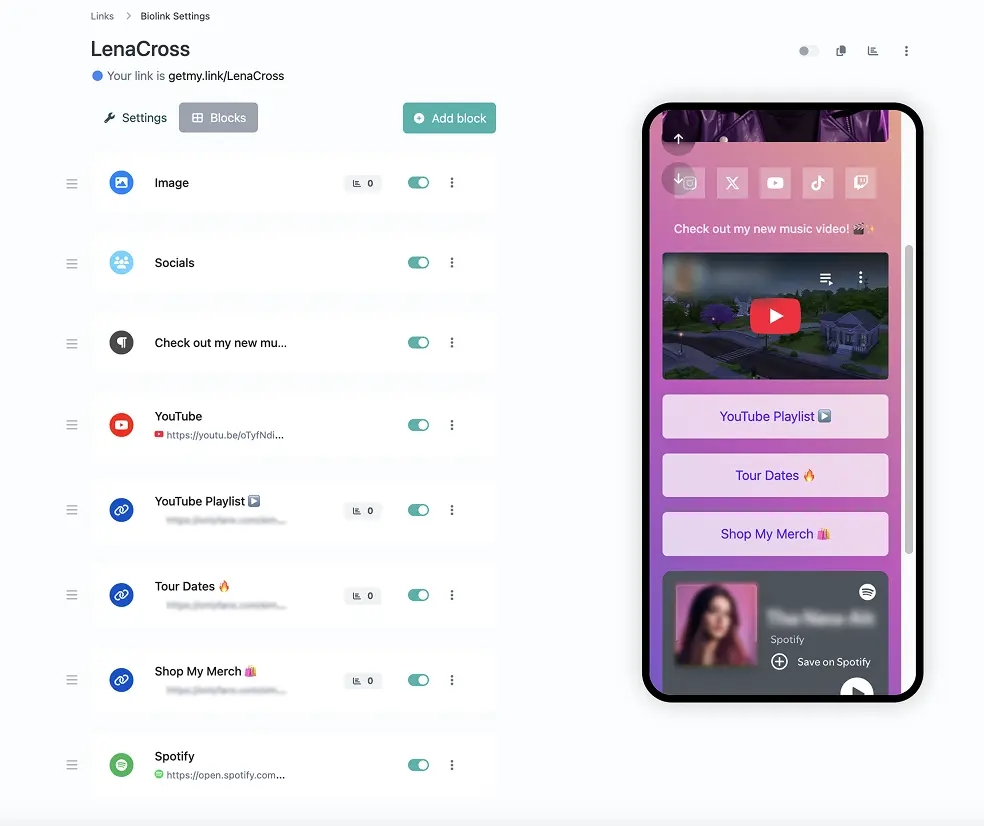
(GetMy.Link biolink editor screenshot showing a musician’s link page with social links, YouTube video, playlist, tour dates, merch links, and Spotify integration in a mobile preview.)
Step 2 – Add Your Music, Merch & Socials
Now let’s fill your page with what matters most – your music, content, and connection points.
From the page editor, click “Add Block” and choose the right type for each item you want to share. You can build out your page in minutes – no tech skills needed.
Here are the block types musicians use most:
- Link block – Perfect for Spotify, SoundCloud, Apple Music, Bandcamp, YouTube, or anywhere your music lives. Paste your link, give it a short title (“Listen on Spotify”), and you’re done.
- Button block – Great for merch shops, tip jars, ticket links, or email signups.
- Image block – Show off album covers, promo banners, or tour posters.
- Text & Heading blocks – Add short bios, section titles (“New Singles”, “Upcoming Shows”), or quick updates.
- Social icons – Link out to your Instagram, TikTok, X/Twitter, Facebook – all in one neat row.
You can drag and drop blocks to rearrange them any time. And if you want to group links by type (like “Listen” vs “Watch”), just stack them under a Heading block for clarity.
Step 3 – Make It Yours: Customize the Look
Once your content is in place, it’s time to make your page feel like you. Your music has its own style – your link page should match it.
In the Page Settings, you can:
- Change colors – match your background, buttons, and text to your album art or brand palette.
- Choose fonts – pick something clean, bold, or playful to fit your vibe.
- Upload a logo or profile image – use your artist avatar, tour logo, or even custom artwork.
- Add a custom favicon – so even your browser tab feels on-brand.
Tip: Use sections and headings to organize content. For example, place all streaming links under “Listen”, then merch under “Shop”, and tour info under “Live”.
This isn’t just about looks – a clean, on-brand layout builds trust, keeps fans scrolling, and helps them find exactly what they’re looking for.
Step 4 – Go Beyond Links: Files, QR Codes & Pages
GetMy.Link gives you more than just clickable buttons. You can share real content – not just redirect people to other platforms.
Here’s how musicians use the extra tools:
- File Links – Upload audio tracks, ZIP bundles, lyric sheets, press kits, or exclusive content. Fans can download directly from your page. Great for behind-the-scenes drops, DJ packs, or early access promos.
- Static Pages – Think of these as mini landing pages. You can create a full-page layout for a new album, single release, tour schedule, or launch announcement. Add images, headings, and formatted text – no coding needed.
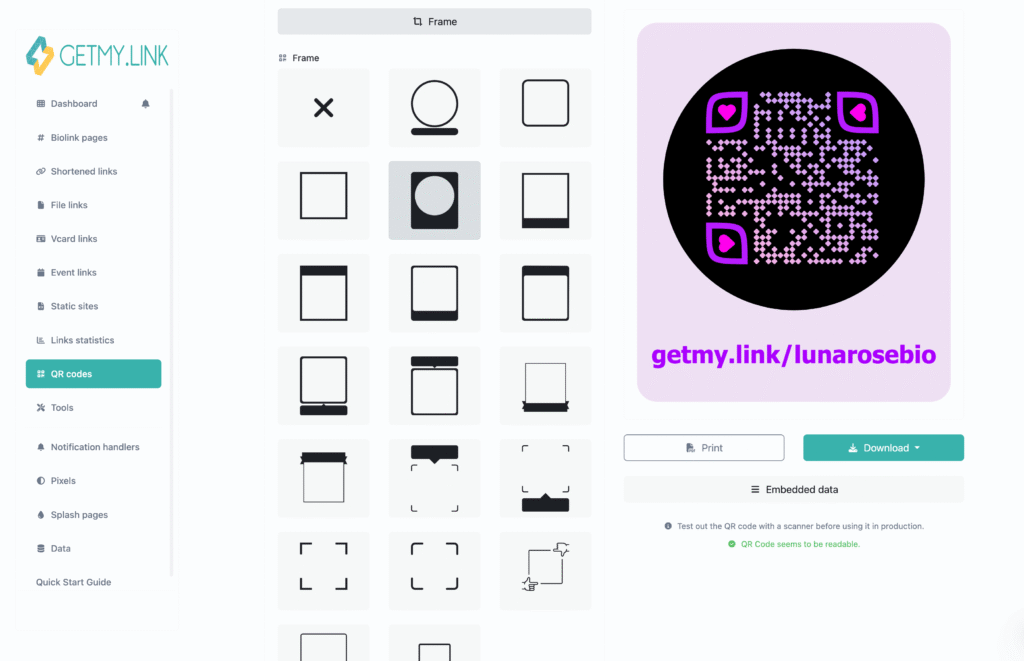
- QR Codes – Instantly generate a QR code that points to your page, your merch, a file drop, or even a secret link. Customize its shape, colors, and embed your logo. Perfect for printing on posters, tickets, or merch tags.
Pro tip: You can also password-protect file links for fan clubs, Patreon perks, or limited releases – no extra tools or integrations needed.
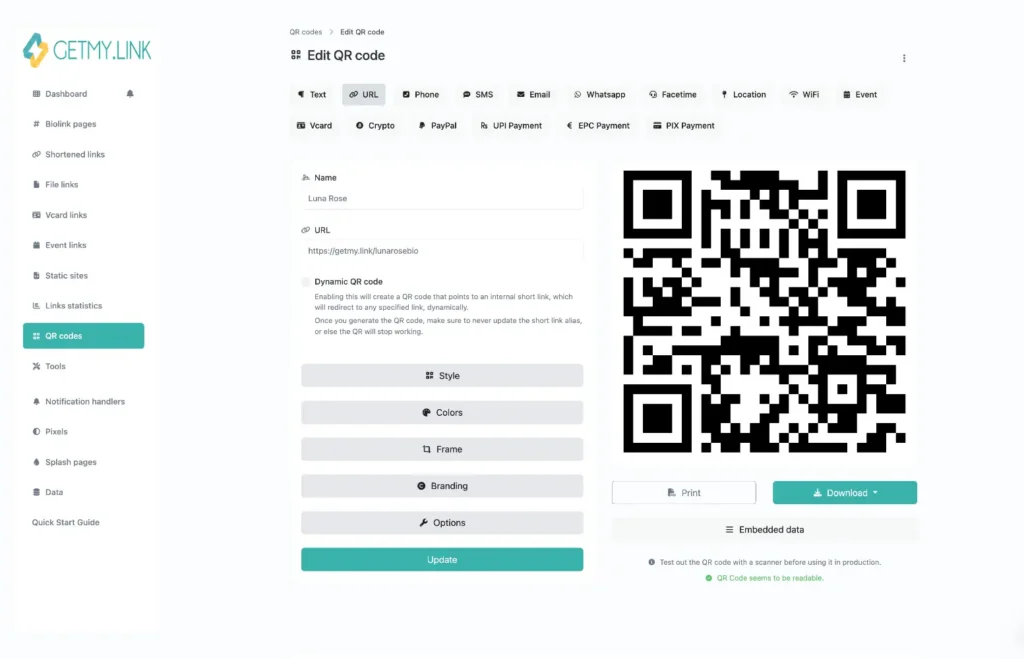
(Screenshots of the QR code creation and design customization process in GetMy.Link)
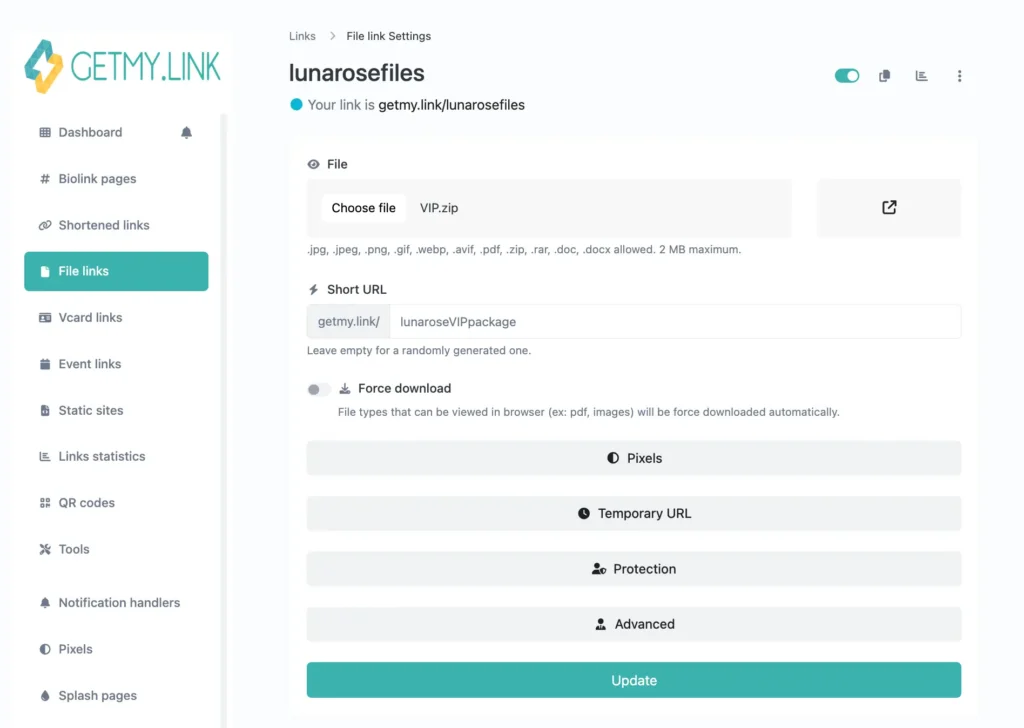
(Screenshot of uploading a file to the GetMy.Link file manager and assigning it to a link.
Using this approach, music artists can upload tracks or video clips and make them available for download through a button on their bio link. The same link can be shared in social media profiles, via QR codes, or through any other distribution channel.)
Step 5 – See What Works: Built-In Analytics
Once your page is live and fans start clicking – you’ll want to know what’s getting attention. GetMy.Link tracks everything for you, right from the dashboard.
Here’s what you get:
- Total page views and unique visitors
- Country, device, browser, and referrer breakdown
- Clicks per block – so you can see which links perform best
- Trends over time – helpful for launches or tour announcements
No need to connect third-party tools – it’s all there by default. Want to know if fans are coming from Instagram or TikTok? Or whether more people are tapping “Spotify” or “YouTube”? You’ll see it instantly.
Use this data to:
- Reorder your blocks based on what gets the most clicks
- Focus on platforms that actually drive traffic
- Test different link titles or layouts for better results
This kind of insight is what turns a basic link page into a real strategy. You’re not just hoping fans click – you’re measuring, learning, and improving.
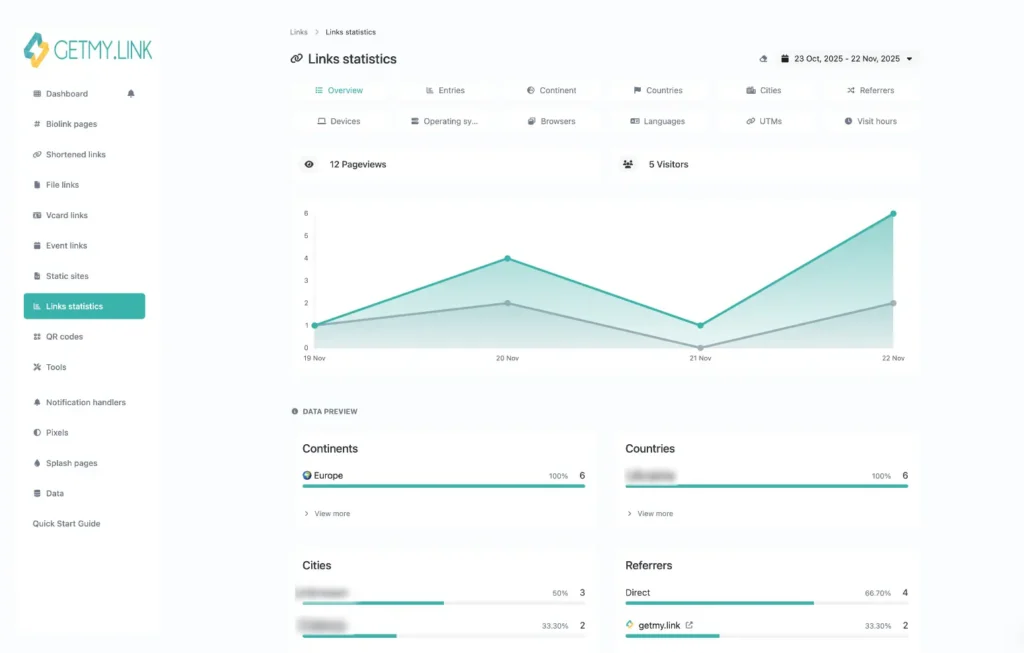
(Screenshot of GetMy.Link analytics panel.)
Step 6 – Treat It Like Your Home Base
You don’t need a complicated website to promote your music. Your GetMy.Link page can do the heavy lifting – and it’s way easier to update on the fly.
Think of it as your digital home base:
- Link to it from every bio (Instagram, TikTok, YouTube, X)
- Drop it into your email signature or press kit
- Print the QR code on posters, tickets, merch tags
- Update links before a new drop, show, or collab – no dev needed
This one page brings everything together: your sound, your visuals, your links, and your story. It grows with you – from first single to sold-out tour.
Whether you’re promoting a debut EP or your next world tour, GetMy.Link for musicians gives you the tools to share, grow, and connect – all in one place.
FAQ: Musicians Using GetMy.Link – Everything You Need to Know
- Is GetMy.Link really free for musicians?
Yes! GetMy.Link is completely free to use – from day one and throughout your entire experience. No hidden fees, no forced upgrades.
- How many links can I add to my page?
There’s no limit. You can add as many links, buttons, or sections as you want – organize them however it makes sense for your content.
- Can I upload music files directly?
Yes, with File Links you can upload audio files (MP3, WAV, ZIPs, etc.) and share them directly – fans can stream or download them without leaving your page.
- Can I embed a Spotify player or YouTube video?
Yes! Just paste the link from Spotify or YouTube and GetMy.Link will auto-embed the player directly into your page.
- Can I customize the look of my page to match my album art?
Absolutely. You can set custom background colors, fonts, add your own logo or profile photo, and even adjust spacing and layout. It’s your brand, your vibe.
- Is there a limit to how many pages I can create?
Nope – you can create as many bio pages, landing pages, or microsites as you need. Great for organizing by album, tour, or project.
- Can I see how many people clicked my Spotify link?
Yes. GetMy.Link tracks clicks on every block – you’ll see exactly how many taps each link gets, along with overall views, traffic sources, and more.
- Can I add links to Bandcamp, SoundCloud, Apple Music, etc.?
Of course! You can link out to any platform – just paste the URL and customize the label (e.g. “Stream on Bandcamp” or “Listen on Apple Music”).
- How do QR codes work and where can I use them?
You can generate a QR code for any page, file, or link – customize the color and shape, then print it on posters, flyers, or merch. Fans scan and land directly on your content. And if the original link ever becomes outdated, you don’t need to reprint anything – just update the destination behind the same QR code to keep it fresh.
- How do I use password protection for files or links?
When creating a File Link, just toggle “Password protection” and set your passcode. Share that code only with the fans who should have access.
- Will my page show up in Google search results?
Yes – GetMy.Link pages are SEO-friendly and indexable. You can customize your page’s title and description in the Settings to improve discoverability.
- How do I connect my GetMy.Link to Instagram or TikTok?
Just paste your GetMy.Link URL into your Instagram bio, TikTok profile, or any other platform that allows a link-in-bio.
- Can I use GetMy.Link for promoting shows and selling tickets?
Yes – add links to your ticketing platforms or event pages. You can also create a dedicated static page for your full tour schedule or a single event drop.
- How does GetMy.Link help with music promotion?
It gives you one central hub where fans can access everything – music, merch, shows, videos, socials. Plus, built-in analytics show you what’s working.
- Is there an app or do I manage it all in-browser?
Right now, GetMy.Link is fully browser-based and mobile-friendly. You can edit and manage everything from desktop or phone – no app required.
- Can I schedule links to appear or disappear?
Not yet – but this feature is on the roadmap. For now, you can manually add or hide blocks with one click in the editor.
- How often should I update my page?
As often as you release something new! Updating for each drop, show, or campaign keeps your link fresh and relevant.
- Can I clone an existing page as a template?
Yes. In the dashboard, you can duplicate any page with one click – perfect for reusing layouts for new albums or tours.
Leave a Reply